How to Export Your Sent Emails from Gmail with Google Takeout
Published 7 August 2026 · 8 minute read · The ReciteMail Blog
People pull their sent mail out of Gmail for three reasons. A backup that survives a locked account. A move to another provider or machine. Or feeding it to something that learns how they write. Whichever brought you here, the tool is the same: Google Takeout, which is genuinely good at this once you know its two quirks. It wants to export your entire Google life unless you stop it and it has no date filter, which this guide gets around with a label trick at the end.
Honest context first, same as our Outlook export guide: we publish these because ReciteMail reads an exported Sent archive to learn your voice, which is how we ended up writing the instructions we wished existed. Everything below works identically whether you ever install it or not.
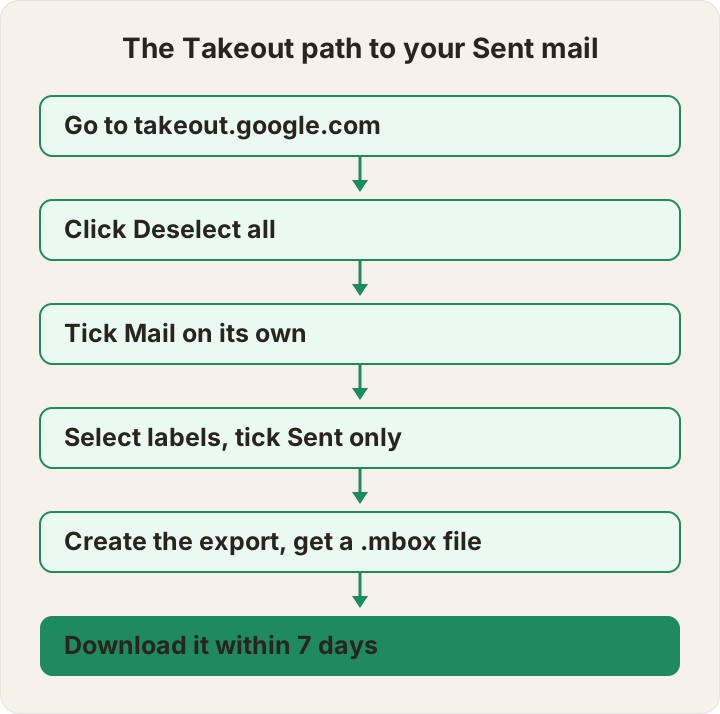
The whole path in one picture
Step by step
- Go to takeout.google.com and sign in with the account you want to export.
- Click Deselect all at the top. This is the step people miss. Takeout defaults to exporting every Google product you have ever touched, which turns a five minute job into a 40GB archive of photos and map history.
- Scroll down to Mail and tick it.
- Click the button that says All Mail data included. In the panel that opens, switch to Select labels and untick everything except Sent. Gmail treats Sent as a label like any other, which is exactly what makes a Sent-only export possible.
- Click Next step. Keep the delivery method as Send download link via email (Drive, Dropbox, OneDrive and Box are also offered if you prefer).
- Click Create export and close the tab. A Sent-only export from a normal account usually lands within the hour. A decade of mail with attachments can take hours. Google emails you when it is ready.
- Open the email and download the archive. The link expires after 7 days so do not park it for the weekend after next.
What you actually end up with
Inside the downloaded zip is a file called something like Sent.mbox. An .mbox is one container holding whole messages back to back: headers, body text, formatting and attachments. Two things about it surprise people. Windows cannot preview it: double-clicking in File Explorer gets you nothing, which is normal rather than a failed export. And it is bigger than you expect, because sent mail is where your attachments live: the quotes, the photos, the reports you sent are all in there.
To read it you need something that speaks the format. Thunderbird opens it as a mailbox. Tools that learn from your writing import it directly, ReciteMail included. Treat the file with the same care as the mailbox it came from: everything you have ever sent is inside. If it travels anywhere, it travels encrypted or not at all.

Getting only a date range: the label trick
Here is the honest position. Takeout has no date filter for Mail. It exports whole labels and nothing finer. Classic Outlook wins this particular point with its buried filter dialog. The workaround in Gmail is to make your date range into a label and export that instead:
- In Gmail, search in:sent after:2024/06/30 (adjust the date to taste; add before: for a closed range).
- Tick the select-all box, then click Select all conversations that match this search when the banner offers it.
- Use the label icon to create and apply a new label, something like export-recent.
- Back in Takeout, choose Select labels and tick your new label instead of Sent.
Two practical notes. If the point of the export is teaching something your writing style rather than archiving everything, about two years of recent sent mail is plenty. Recent is better because it sounds like you now. And once the export is done you can remove the label in Gmail with no effect on the mail itself.
When the export will not behave
- The email from Google never arrives. Check spam first, then the Takeout page itself, which lists your exports and their status under Manage your exports. Big mailboxes genuinely take hours.
- The export came as several zip files. Takeout splits archives at 2GB by default. Each part is valid on its own; you can also raise the split size to 4, 10 or 50GB on the Next step screen before exporting.
- The download link expired. It lasts 7 days from when the export finishes. There is no way to revive it, though re-running the same export takes two minutes of clicking.
- The Sent label is missing from the picker. You are still on Include all messages in Mail. Switch the toggle to Select labels first and the list appears.
- Worried the export changes your Gmail. It does not. Takeout writes a copy. Nothing is moved, deleted or marked read.
What the file is good for
The obvious use is the backup: a copy of everything you have ever written that survives a lost password, a suspended account or a provider you fall out with.
The less obvious use is that your Sent folder is the best record that exists of how you actually write. Every reply to a customer, a supplier or a colleague, in your own words, with your own way of opening, softening a no and signing off. That is what ReciteMail reads: export your Sent mail with the steps above, import the .mbox and it drafts replies in your voice instead of a template's. Nothing ever connects to your Gmail, which is the point of doing this by export in the first place: you hand over one file you chose to create and your mailbox stays where it is. How that works under the hood is spelled out on the security page. And if the reason you are exporting is that you are tired of writing the same replies over and over, the reply system piece picks up where the export ends.
Dates in this guide are load-bearing. The steps above are accurate as of 7 August 2026. Google moves Takeout's furniture from time to time. If a button is not where this guide says, check Google's own Takeout help before assuming the export is gone.
Common questions
How long does Google Takeout take for Gmail?
Anything from a few minutes to a day. A Sent-only export from a normal account usually lands within the hour. Exporting many years of mail with attachments can genuinely take hours, occasionally longer. Google emails you when it is ready. This is the strongest reason to export only the Sent label rather than the whole mailbox.
Can I export only my Sent mail from Gmail?
Yes. In Takeout, after ticking Mail, click the button labelled All Mail data included, choose Select labels and untick everything except Sent. Gmail treats Sent as a label like any other, which is exactly what makes the Sent-only export possible.
Can I export a date range from Gmail?
Not directly. Takeout exports whole labels and has no date filter for Mail. The workaround is to make the date range into a label: search in Gmail for in:sent after:2024/06/30, select all matching conversations, apply a new label such as export-recent and then export that label from Takeout instead of Sent.
What is an .mbox file and how do I open it?
A single container file holding whole email messages one after another: headers, body text and attachments. Windows cannot preview it in File Explorer, which is normal rather than a sign the export failed. Email programs like Thunderbird can open it and tools that learn from your writing, ReciteMail included, read it directly as an import.
Does exporting remove anything from my Gmail?
No. Takeout writes a copy. Your mailbox is untouched, nothing is moved or deleted and you can run another export any time. The only thing with a deadline is the download link itself, which expires 7 days after the export is ready.
Your sent folder already knows how you write
Export it with the steps above, import the .mbox and ReciteMail drafts replies in your own voice instead of a template's. It never connects to your mailbox and nothing sends without you. Free for 7 days, no credit card.
Start your free trial