How to Export Your Sent Folder from Outlook (New and Classic)
Published 3 August 2026 · 9 minute read · The ReciteMail Blog
You want your sent mail out of Outlook. Perhaps you are moving to a new machine, perhaps someone has asked for an archive, perhaps you want your own writing in a file you control. Whatever brought you here, you have probably already found a guide that confidently told you to click File and then discovered there is no File menu on your screen. That is not your fault. There are currently two different applications called Outlook on Windows and the export lives somewhere completely different in each one.
Before the steps, some honest context. People export their sent mail for three reasons. A backup that survives a dead laptop. A migration to a new machine or account. Feeding it to something that learns how they write. We publish this guide because of the third one: ReciteMail reads an exported Sent folder to learn your voice, which meant writing the export instructions we wished had existed. Everything below works the same whether you ever install it or not.
First, work out which Outlook you are actually in
They share a name, a logo and most of a mailbox. Underneath they are separate products. Classic Outlook is the old desktop application that has been installed with Office for twenty years. New Outlook is the rebuilt one Microsoft has been rolling out since 2023, closer in spirit to the web version than to its own predecessor.
The quickest way to tell them apart takes two seconds. Look at the top left corner of the window. If there is a File menu, you are in classic Outlook. If there is not, you are in new Outlook. There is usually a New Outlook toggle switch over in the top right to confirm it.
That toggle is worth knowing about for another reason. On most machines that still have classic installed, flicking it off drops you straight back into the old app. If you find the new export limiting, that switch is your escape hatch rather than a reinstall.
Classic Outlook: four screens and you are done
This is the path most guides describe. It still works exactly as it always has.
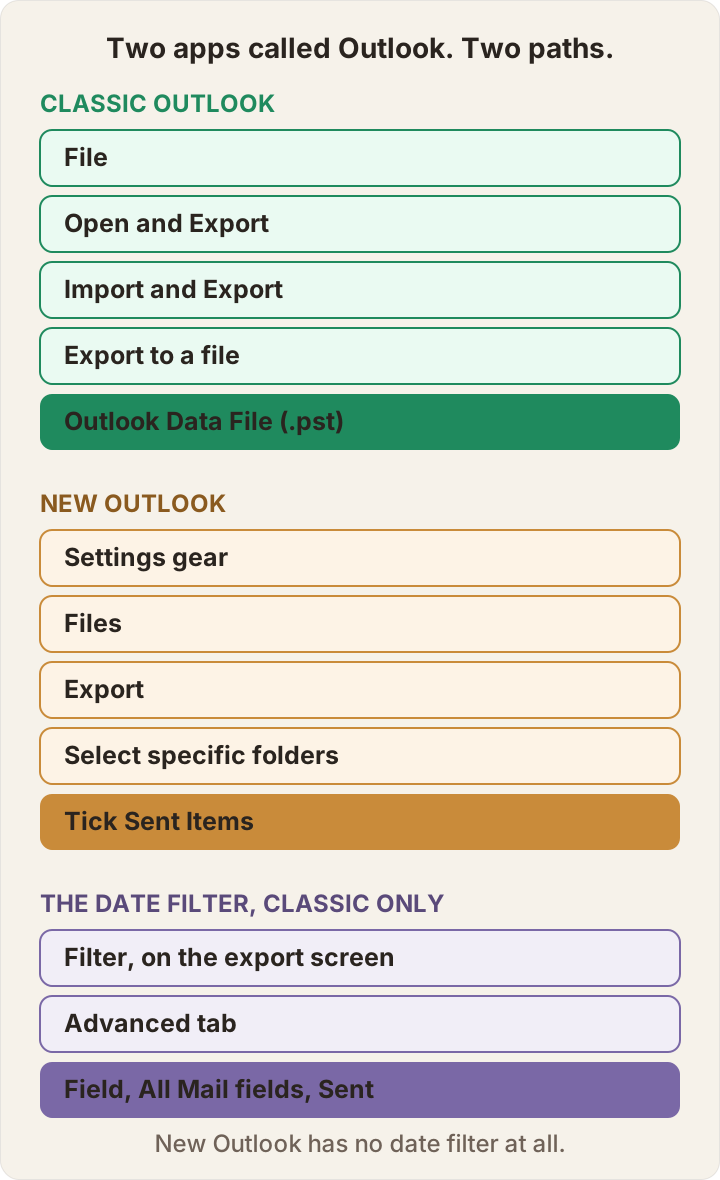
- Go to File, then Open and Export, then Import and Export.
- Choose Export to a file, then Outlook Data File (.pst).
- Select the Sent Items folder from the tree. Leave Include subfolders ticked only if you have actually filed sent mail into subfolders under it.
- Choose where to save it and click Finish.
Two small things that trip people up here. The first is the folder tree: it is easy to select your whole mailbox by accident because the top level is highlighted when the screen opens. Click Sent Items specifically. The second is patience. A Sent folder holding several years of attachments can take a good few minutes to write out and Outlook will look frozen while it does it. It is not frozen. Leave it alone.
New Outlook: a different menu entirely
Nothing about the classic path exists here. There is no File menu and no Import and Export wizard. The export sits in settings instead. It is genuinely new: the ability to produce a .pst at all only arrived in June 2025, with scheduled repeat exports following about a month later. If you tried this in 2024 and concluded it was impossible, you were right at the time.
- Click the Settings gear, then Files, then Export.
- Click Get started, then choose Select specific folders and tick only Sent Items.
- Wait. The export is prepared in the background and Outlook notifies you when it is ready. You can close the settings pane and carry on working.
- Download the .pst file it produces.
The last step is where people lose the file. New Outlook does not ask you to choose a location the way classic does. It hands the finished export over as an ordinary download, which means it lands wherever your browser or your system puts downloads. Look in your Downloads folder before concluding the export failed.
One asymmetry worth carrying away: new Outlook can now create a .pst but it still cannot open one. Bringing an Outlook Data File back into Outlook remains a classic-only job as of August 2026. Microsoft has said it intends to loosen that dependency, while also being fairly open that .pst is not a format it plans to keep developing indefinitely. Export the things you want to keep while the exporting is easy.
Outlook on the web
If you reach your mail through a browser at outlook.com or through your organisation's webmail, you are in the same engine that powers new Outlook and the route is the same: the Settings gear, then Files, then Export. The wording occasionally differs by tenant because administrators can restrict what appears. If the Export option is simply not there, skip to the troubleshooting section below, because that absence usually means something specific.
What you actually end up with
A .pst is a single container file holding whole messages: headers, body text, formatting and every attachment. It is not a folder of separate emails and you cannot browse it in File Explorer. To read it you open it back up in classic Outlook through File, then Open and Export, then Open Outlook Data File.
Expect it to be larger than you assume. Sent mail is attachment-heavy by nature, because it is the side of the conversation where you were the one sending the quote, the photo or the twelve-page report. A few years of a working Sent folder running to several gigabytes is entirely normal. This is exactly why exporting Sent only, rather than the whole mailbox, is worth the extra thirty seconds of clicking.
Treat the file with the same care as the mailbox it came from. Everything you ever sent is in there, including the messages you would not want read by whoever finds an unencrypted memory stick. If it is going anywhere other than the machine that made it, put it somewhere protected.
That sensitivity is the reason ReciteMail is import-only rather than connected. A tool that signs into your mailbox can read all of it forever. A tool that reads one file you deliberately exported can only ever see what you handed it. The export step exists precisely so the decision stays yours.

Getting only a date range
This is the part that sends people round in circles. Here is the honest position. Only classic Outlook can filter by date while it exports. The control exists, it works well and it is buried where almost nobody finds it.
On the export screen, before you click Finish, there is a Filter button. Click it, open the Advanced tab, then choose Field, then All Mail fields, then Sent. Set the condition to between and type your two dates. That is five clicks deep into a dialog most people never open, which is why so many guides simply pretend the option does not exist.
If the Filter button is missing on your build or you are in new Outlook where there is no date filter of any kind, the workaround is the same in both. Search your Sent folder for the period you want, select the results, copy them into a temporary folder and export that folder instead. It feels like a bodge because it is one. It also works every time.
One practical note on how much to take. If the point of the export is teaching something your writing style rather than archiving everything you own, two years of recent sent mail is plenty. Recent is also better, because it sounds like you now rather than you in 2019.
When the export will not behave
Four things go wrong often enough to be worth naming.
- The Export option is greyed out or absent on a work account. This is almost never a bug. Organisations can block mailbox export through policy. On a managed device that block is deliberate. No amount of clicking will get around it. Ask whoever runs your IT rather than hunting for a workaround, because the workarounds tend to be the sort of thing that gets flagged.
- The export stalls or fails partway through. Usually the mailbox is simply too large to write in one pass. Export Sent Items on its own rather than everything. If it still gives up, split the job with the date filter above and produce two smaller files.
- You cannot find the finished file. Classic puts it wherever you told it to and defaults to your Documents folder inside a subfolder called Outlook Files. New Outlook puts it in Downloads without asking. Check both before assuming nothing happened.
- The file will not open again. If you are trying to open a .pst inside new Outlook, that is the limitation described above rather than a corrupt file. Switch to classic to read it.
What the file is good for once you have it
The obvious use is a backup that survives a laptop dying, a mailbox being migrated or an account being closed. That alone justifies the ten minutes.
The less obvious use is that your Sent folder is the single best record of how you write. Every reply you have ever sent to a customer, a supplier or a colleague, in your own words, with your own greetings and your own way of delivering bad news. Most people never look at it as a body of work. It is one.
That is what ReciteMail reads. You export your Sent folder using the exact steps above, import the file and it learns how you actually write rather than how a template thinks you should. After that you paste in an email you need to answer, say a line about what you want to happen and the draft comes back sounding like you. Nothing ever connects to your mailbox, which is the whole point: you hand over one file that you chose to create and the rest of your mail stays where it is. The same guide you have just read is built into the app for every provider so you never have to go looking for it twice.
If the reason you are exporting is that you are tired of writing the same replies over and over, there is a longer piece on building a reply system that goes past the export step. If you would rather know exactly where an imported message travels before you import anything, that is written out plainly on the security page.
Dates in this guide are load-bearing. The steps above are accurate as of 3 August 2026. New Outlook is still changing month to month and export in particular has moved twice in the last year. If a menu is not where this guide says it is, check the version you are running before assuming the guide is wrong.
Common questions
Which Outlook do I have, new or classic?
Look at the top left corner. Classic Outlook has a File menu there. New Outlook does not. It usually shows a New Outlook toggle switch in the top right. If you can flick that toggle off, you are in new Outlook. Flicking it off drops you back into classic on most machines that still have classic installed.
Can new Outlook export to a .pst file?
Yes. Exporting to a .pst arrived in new Outlook in June 2025 and scheduled repeat exports followed a month later. Go to the Settings gear, then Files, then Export. The one thing it still cannot do is import a .pst. Bringing an Outlook Data File back into Outlook remains a classic job as of August 2026.
How do I export only a date range from Outlook?
Only classic Outlook can filter by date during the export. On the export screen click Filter, open the Advanced tab, then choose Field, All Mail fields, Sent, set the condition to between and enter your two dates. New Outlook has no date filter at all. The workaround there is to search your Sent folder for the range you want, copy the results into a temporary folder and export that folder instead.
Where does Outlook save the exported .pst file?
Classic Outlook asks you where to put it and suggests your Documents folder inside a subfolder called Outlook Files. New Outlook does not ask. It prepares the export in the background, notifies you when it is ready and then hands it over as a normal download, which means it lands in your Downloads folder.
Your sent folder already knows how you write
Export it, import it and ReciteMail drafts replies in your own voice instead of a template's. It never connects to your mailbox and nothing sends without you. Free for 7 days, no credit card.
Start your free trial